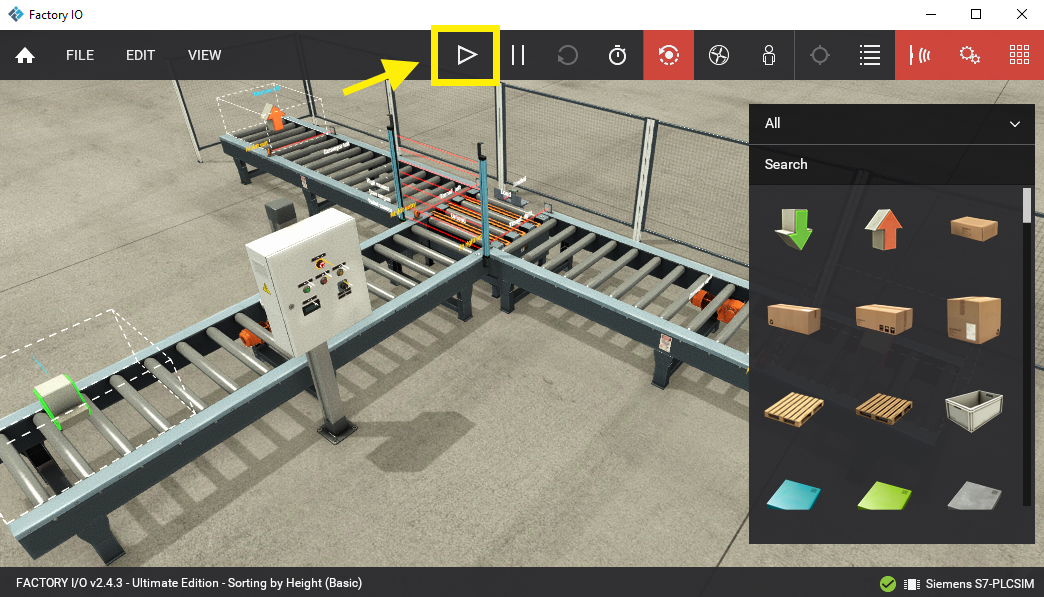
Sorting by Height with S7-PLCSIM Advanced
Requirements
- Siemens Edition or Ultimate Edition
- TIA Portal V14-21
- S7-PLCSIM Advanced V3.0-8.0
This sample provides you with TIA Portal projects ready to download to the simulator and control the Sorting by Height (Basic) scene.
Starting S7-PLCSIM Advanced
-
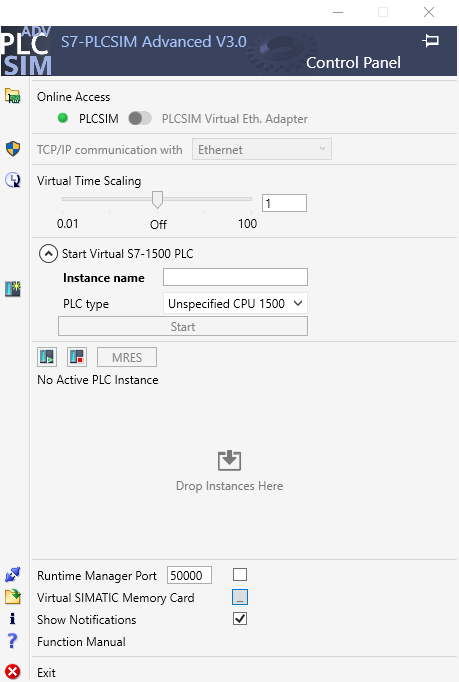
Open the PLCSIM Advanced control panel.
-
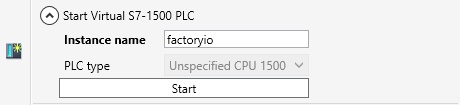
Specify the name of the instance. S7-PLCSIM Advanced must be configured with an instance name set to factoryio.
-
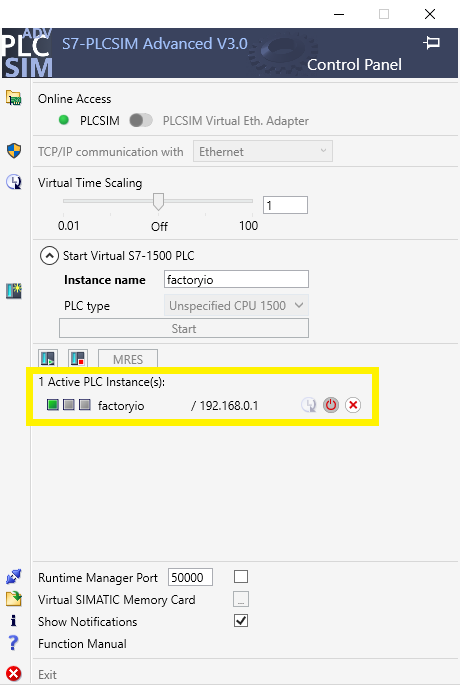
Click on Start. After a few seconds the active instance can be viewed below.
Opening the sample in TIA Portal
-
Download the zip archive (top of this page) corresponding to your TIA Portal version. Extract it and open it.
-
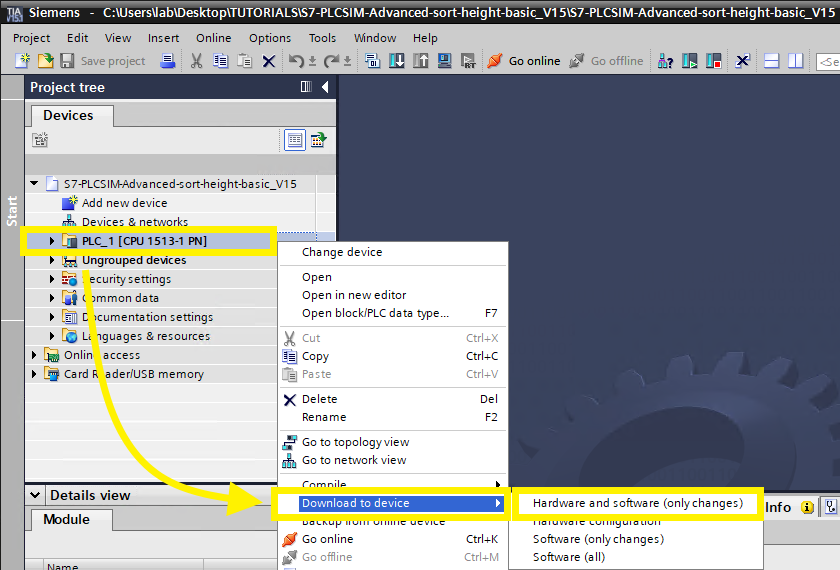
Open the Project View and right-click on the device name. Select Download to device > Hardware and software (only changes).
-
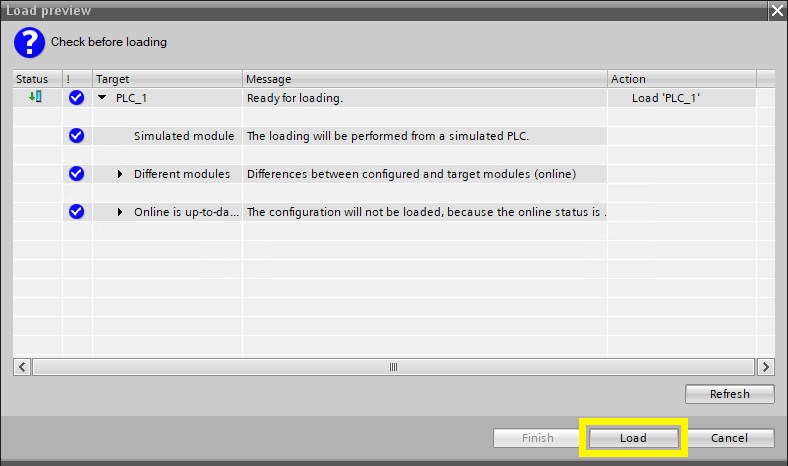
In the Load Preview window click on Load.
S7-PLCSIM Advanced V4.0
In the Load Preview window you'll be asked to enter your password. Enter it and click on Load.
-
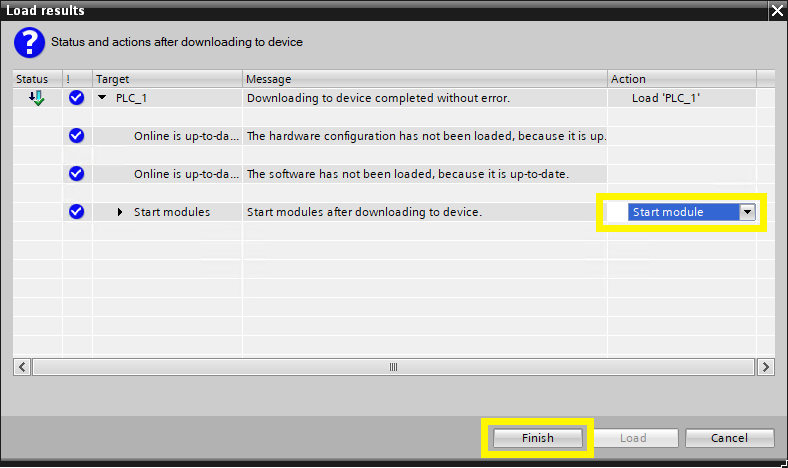
In the Load results window select Start module in the drop-down list.
-
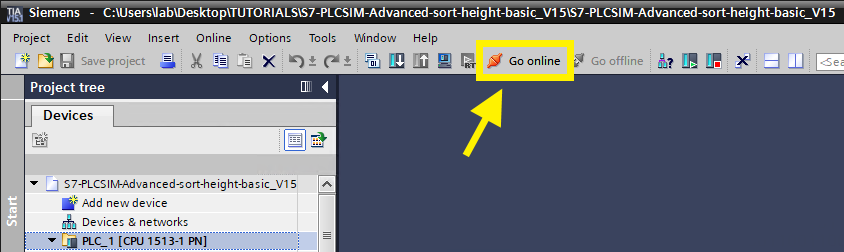
Click on Go online.
Opening and running the scene in Factory I/O
-
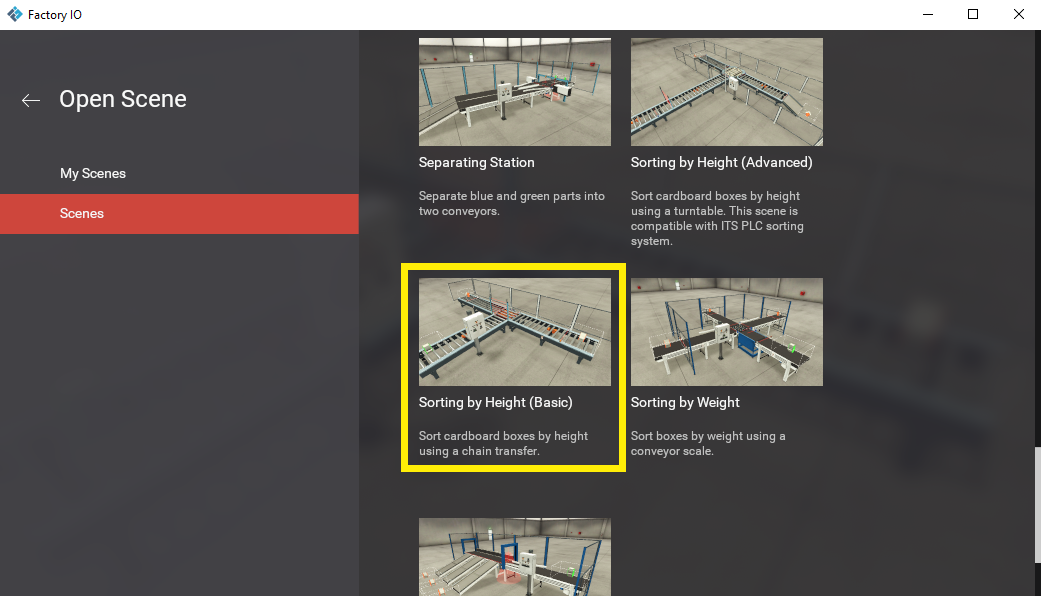
Start Factory I/O and select Scenes > Sorting by Height (Basic).
-
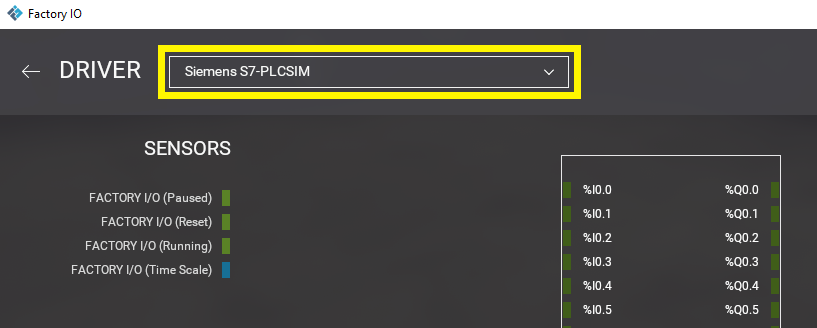
Press F4 to open the Driver Window. Select Siemens S7-PLCSIM on the driver drop-down list.
-
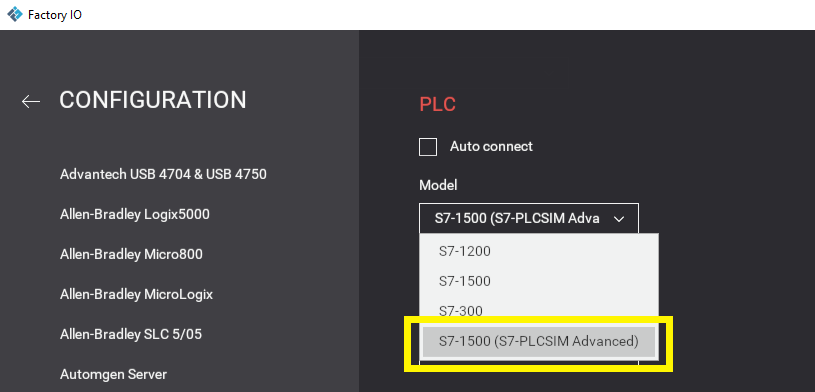
Open the driver Configuration Panel by clicking on CONFIGURATION. Make sure S7-PLCSIM Advanced is selected on the Model drop-down list.
-
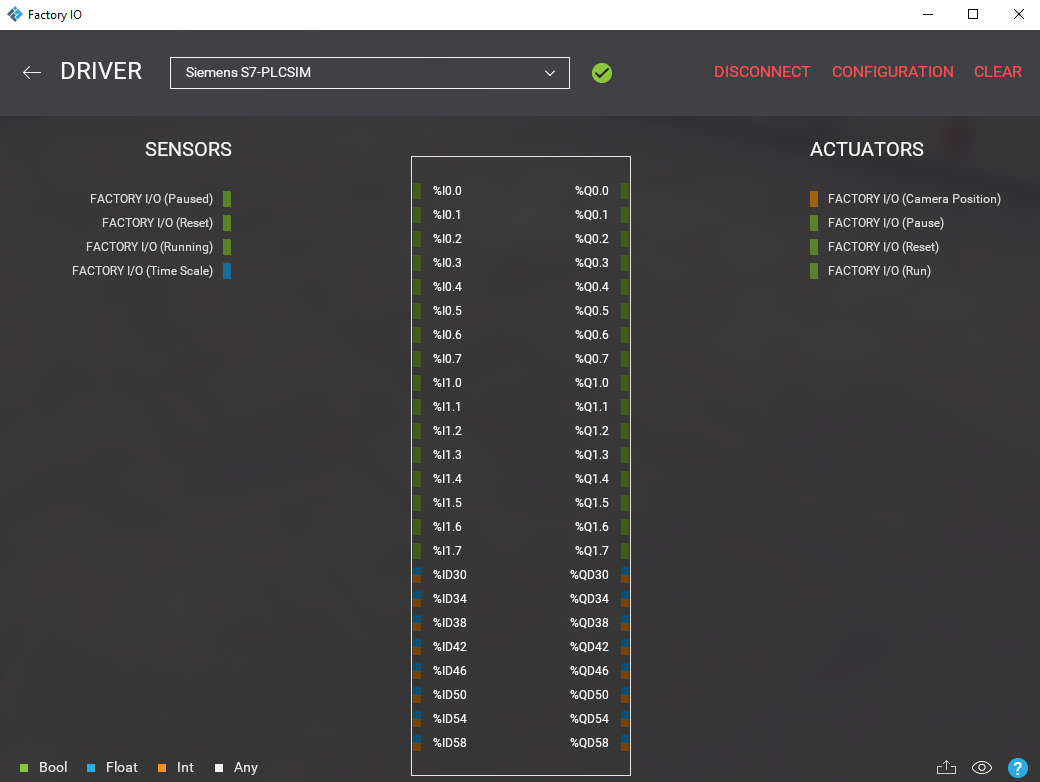
Press Esc to return to the Driver Window. Now, click on CONNECT to connect to the PLC. A successful connection is indicated by a green icon next to the selected driver, as well as next to the driver's name displayed on the status bar.
-
Switch to Run mode and enjoy.