Setting up S7-PLCSIM V20
Requirements
- Siemens Edition or Ultimate Edition
- TIA Portal V20
- S7-PLCSIM V20
Sample Project
This tutorial gives you step-by-step instructions on how to use Siemens S7-PLCSIM V20 to control Factory I/O.
You will start with a template to create a new TIA Portal project. There are specific templates for either S7-1200 or S7-1500 PLCs, as well as for different TIA Portal versions.
TIA Portal Template Projects
Note that you must use a TIA Portal template project when connecting to S7-PLCSIM V20. Factory I/O will not be able to communicate with S7-PLCSIM otherwise.
Downloads for TIA Portal V20
FactoryIO_Template_S7-1200_V20.zip
FactoryIO_Template_S7-1200_G2_V20.zip
FactoryIO_Template_S7-1500_V20.zip
Setting up S7-PLCSIM (S7-1200) with TIA Portal
-
Download and Open the template project corresponding to the TIA Portal version and PLC family you will be simulating.
-
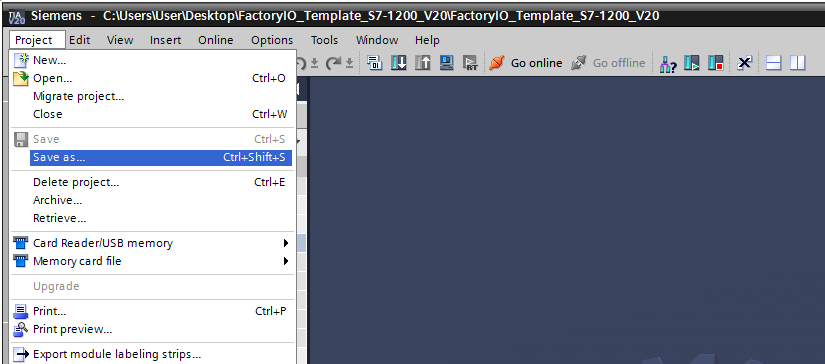
Save the project with a new desired name.
-
You can now write your program.
Warning
In the existing OB1, there is already a Network 1.
Do not delete this network. Otherwise, the connection will not work. -
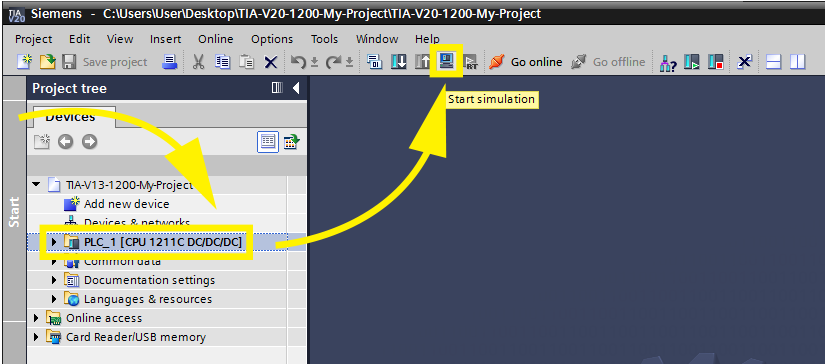
Select the device and turn on the simulation by pressing Start Simulation.
-
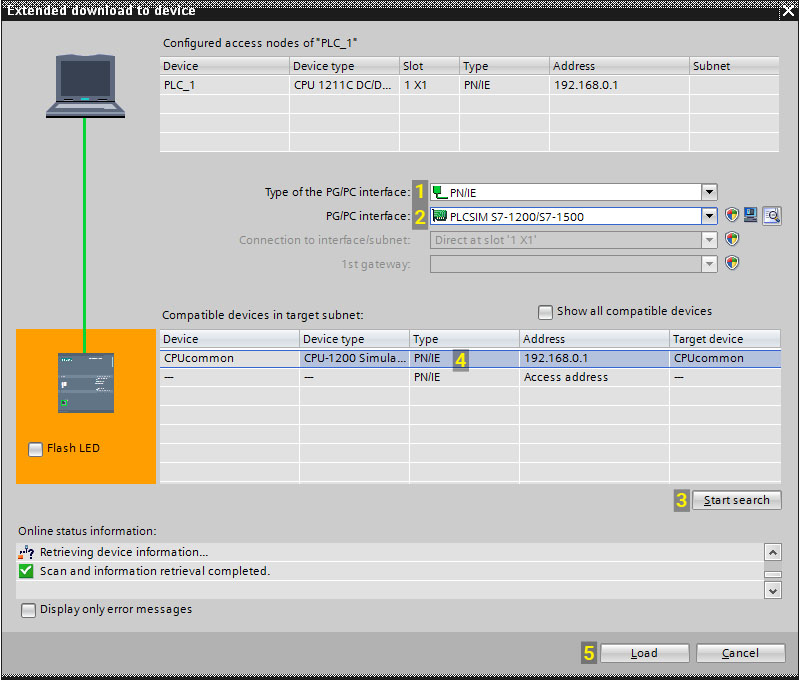
Choose PN/IE (1) as the type of PG/PC interface and on PG/PC interface select PLCSIM S7-1200/S7-1500 (2). Press Start search (3). When scanning completes, select the device (4) and press Load (5).
-
On S7-PLCSIM select RUN to set the CPU to Run Mode.

Setting up S7-PLCSIM (S7-1500) with TIA Portal
-
Download and Open the template project corresponding to the TIA Portal version and PLC family you will be simulating.
-
Save the project with a new desired name.
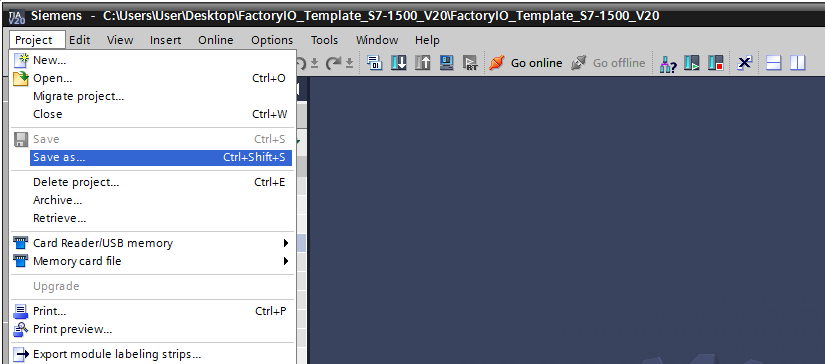
-
You can now write your program.
-
Select the device and turn on the simulation by pressing Start Simulation.
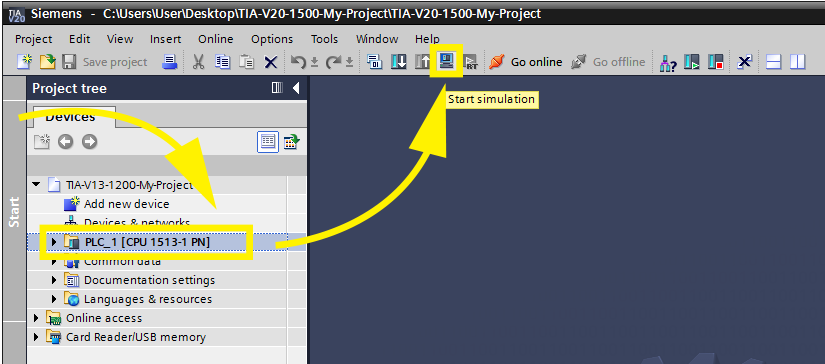
-
Choose PN/IE (1) as the type of PG/PC interface and on PG/PC interface select PLCSIM S7-1200/S7-1500 (2). Press Start search (3). When scanning completes, select the device (4) and press Load (5).
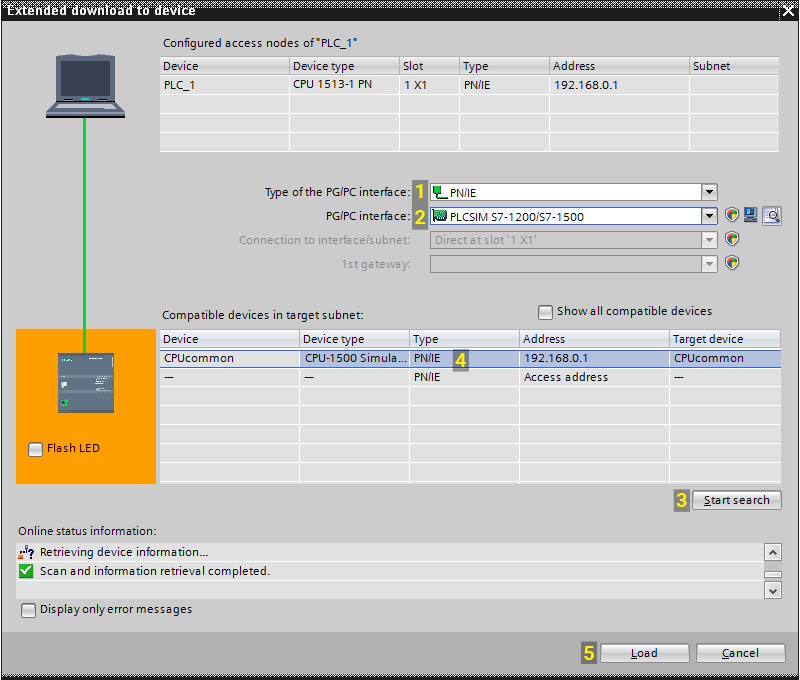
-
On S7-PLCSIM select RUN to set the CPU to Run Mode.
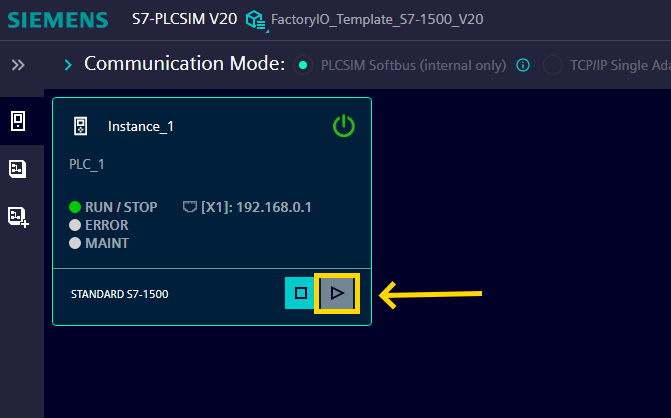
-
Create a SimView.
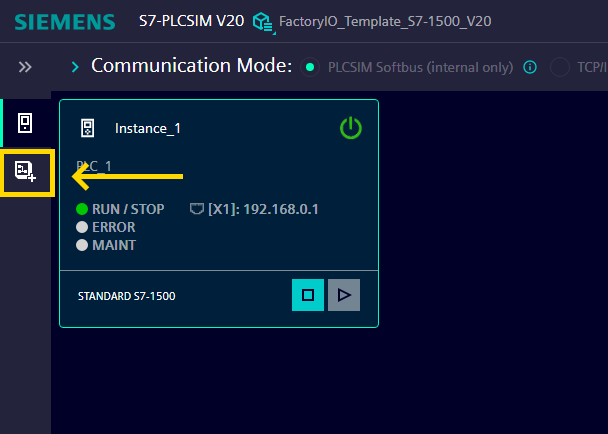
-
Select the SimView (1) and import the sequence (2).
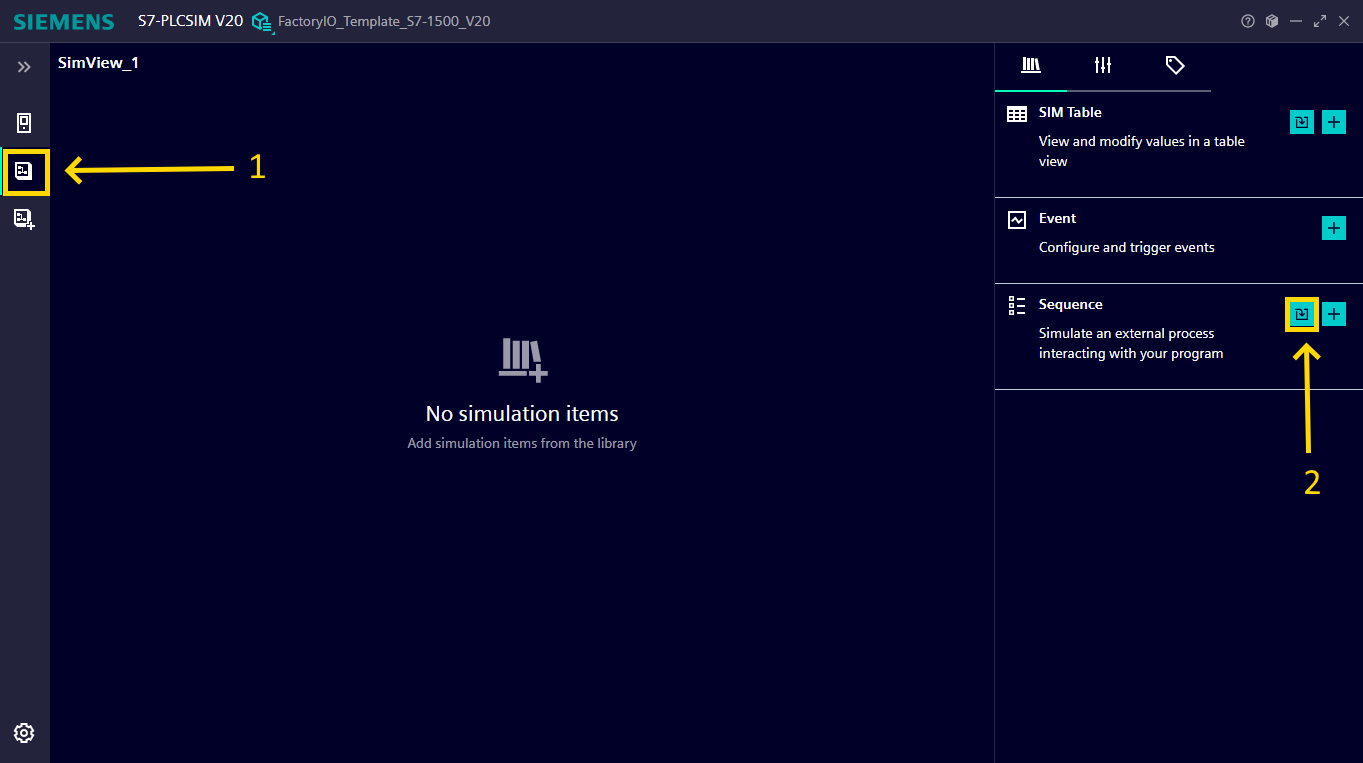
-
Open the template folder and select the file FactoryIOConnectSequenceForS7PlcSim1500.xlsx.
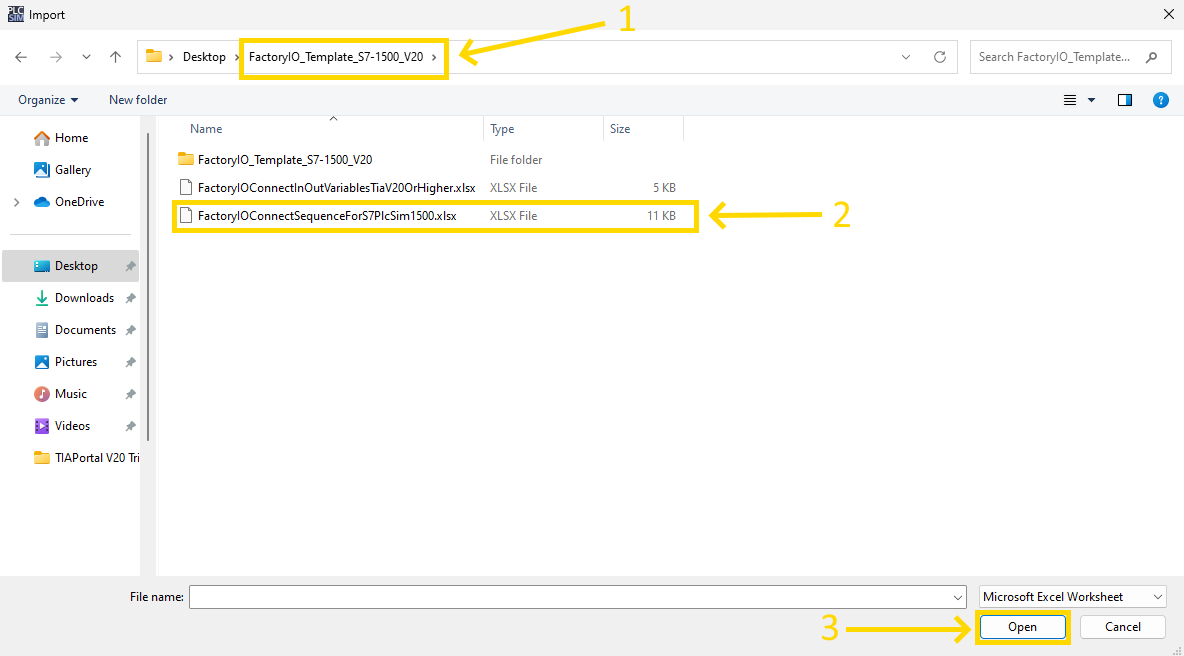
-
Run the Sequence.
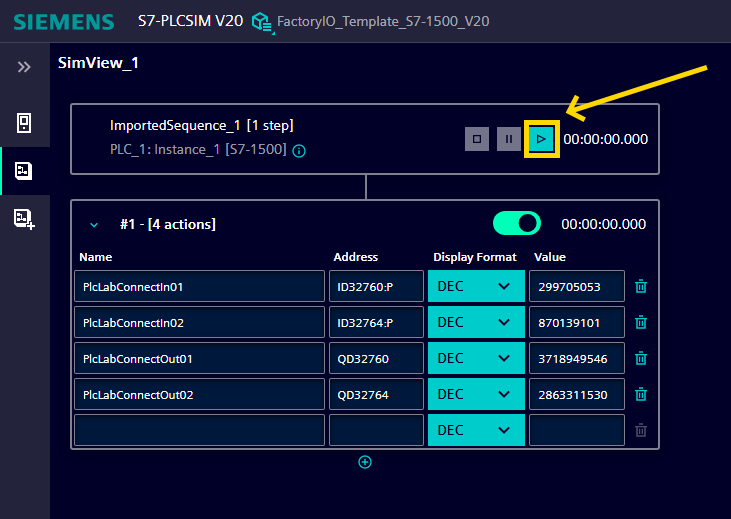
Connecting Factory I/O to S7-PLCSIM
-
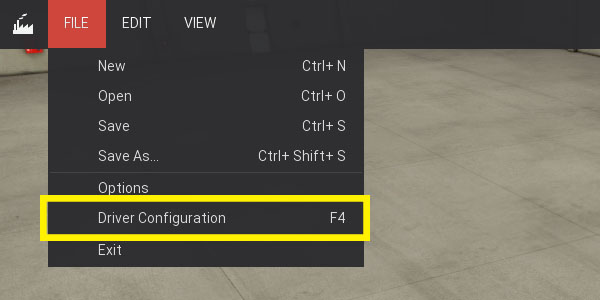
In Factory I/O click on FILE > Driver Configuration to open the Driver Window.
-
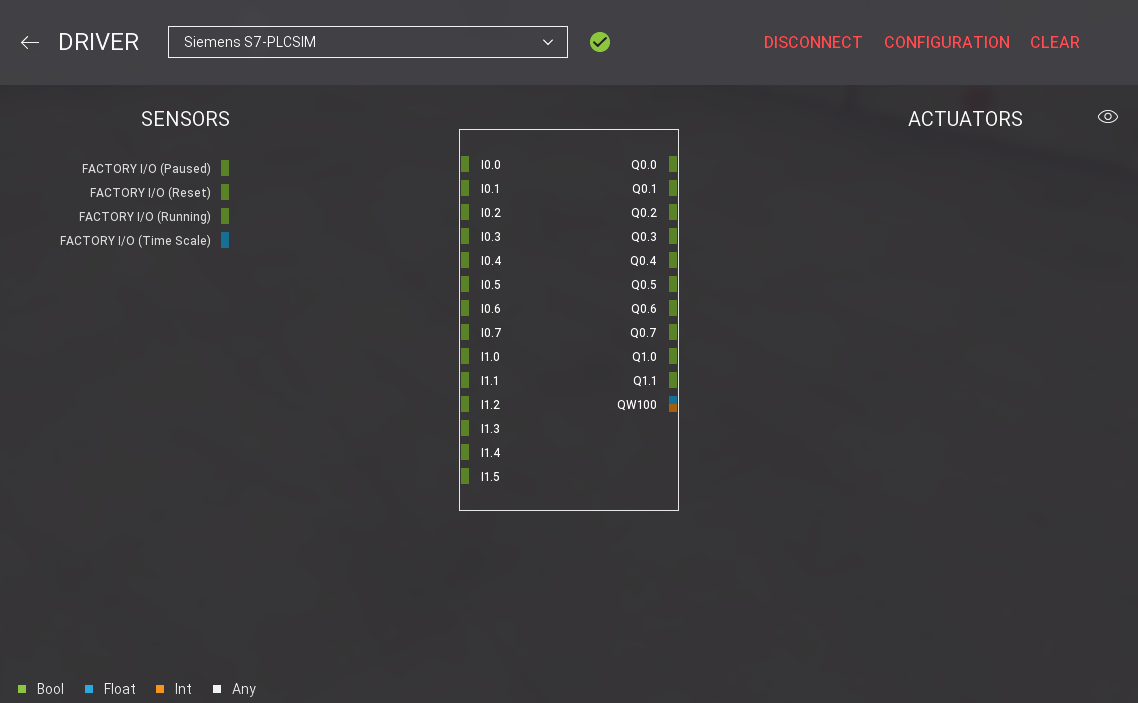
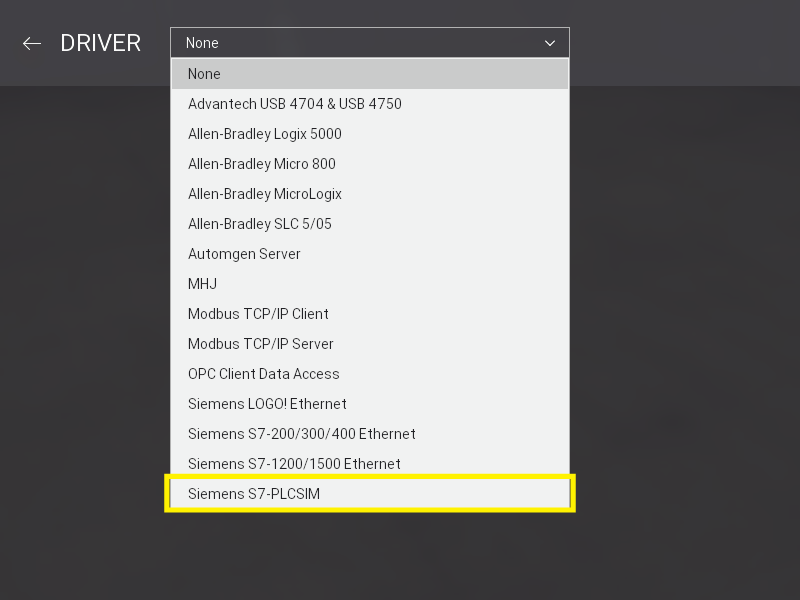
Select Siemens S7-PLCSIM on the driver drop-down list.
-
Open the driver Configuration Panel by clicking on CONFIGURATION.
-
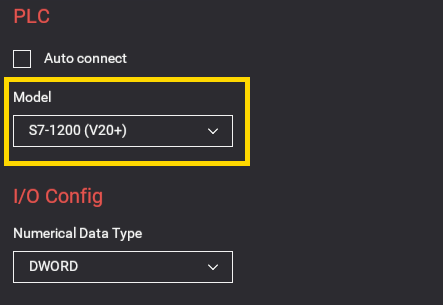
Select a corresponding CPU model for your project on the Model drop-down list (either S7-1200 (V20+), S7-1200 G2 (V20+) or S7-1500 (V20+)).
-
Press Esc to return to the main driver window. Now click on CONNECT to connect to the simulator. A successful connection is indicated by a green icon next to the selected driver, as well as next to the driver's name displayed on the status bar.